Find out how to turn your FixIt site into a Progressive Web App.
What are PWAs?
Progressive Web Apps (PWAs) are web apps that use service workers, manifests, and other web-platform features in combination with progressive enhancement to give users an experience on par with native apps.
Why bother?
Well, the straight answer to this questions is: “You don’t need to turn your site into a PWA.” A normal website is good enough for all the content you want to share. However, a PWA brings some extra benefits that might be useful.
- Pages will be automatically cached by service workers when the app is installed, which enables a near-instantaneous loading from the second visit.
- Users can always visit cached pages when they are offline.
These features may be useful for some websites, such as this documentation site. But it does not make much sense to turn a personal blog into a PWA. In the end, it all depends on your choice, and the FixIt theme will provide this feature for you anyway.
Setup in FixIt
Configure manifest
FixIt generates the web app manifest automatically via the manifest output format. You can configure the app settings under [params.app] in hugo.toml:
 1
 2
 3
 4
 5
 6
 7
 8
 9
10
11
12
13
14
15
16
17
18
19
20
21
| [params.app]
pwa = true
name = "Your App Name"
short_name = "App"
# Web app manifest icons
[[params.app.icons]]
src = "/apple-touch-icon.png"
sizes = "180x180"
type = "image/png"
purpose = "any maskable"
[[params.app.icons]]
src = "/android-chrome-192x192.png"
sizes = "192x192"
type = "image/png"
[[params.app.icons]]
src = "/android-chrome-512x512.png"
sizes = "512x512"
type = "image/png"
|
Alternatively, you can still provide a static site.webmanifest file under the /static/ folder if you prefer manual control.
Here are the key values required.
name [required]
The name of your web app.
short_name [required]
A shorter name for your web app.
start_url [required]
The start URL of your web app. Please fill in "/" by default.
icons [required]
An array of objects representing image files will be served as application icons. You can reuse the favicon of your site as the icons.
There are other optional values you can set in the [params.app] configuration, check out the configuration reference for more information.
You need to add "offline" and "manifest" to outputs.home:
1
2
3
4
5
6
| [outputs]
home = [
# others
"offline",
"manifest"
]
|
Enable the PWA option
Go to hugo.toml, add or change the option pwa = true under [params.app].
1
2
| [params.app]
pwa = true
|
Install your PWA
Now, an install button should show up when you visit your website and you will be able to install your site as an app. After clicking “Install”, your website should be installed as a native app.
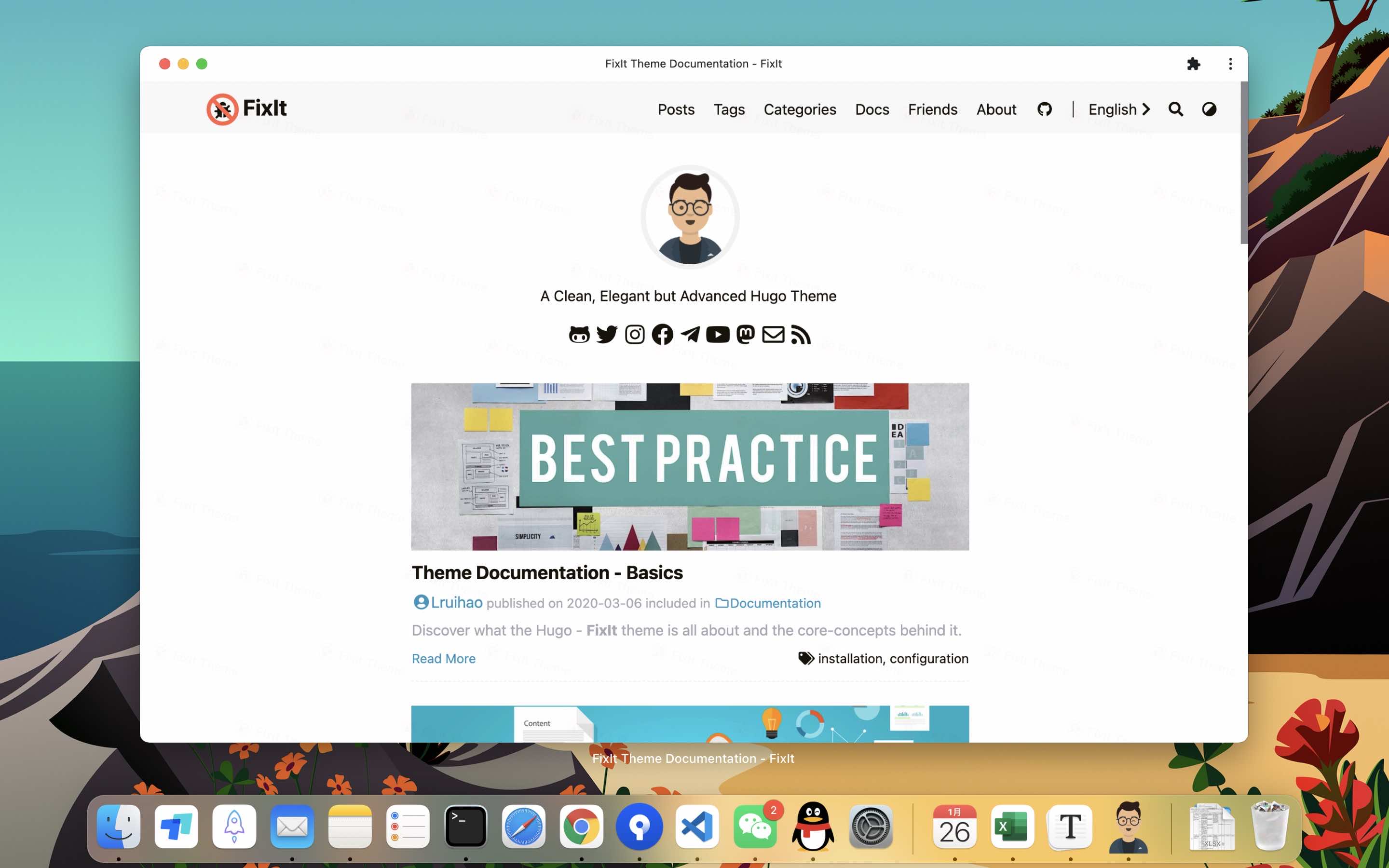 Installed PWA
Congratulation! You have successfully turned your static site into a PWA 🎉
If you have any issues during the setup process, you can check the Console and Application panels in your browser’s DevTools for debugging. Alternatively, you can check your site on PWA Builder for more information. You can also start a discussion if you have any questions or propose an issue for any bugs you find.
 FixItTheme for Hugo